AI meeting assistant.
Context included.
Record the conversation without a meeting bot. Keep the transcript beside relevant decisions, documents and history from your selected local repositories.
macOS 15+ · Apple Silicon / Windows 11 24H2+ · x64
Technical beta. Choose your platform for the install command and requirements.
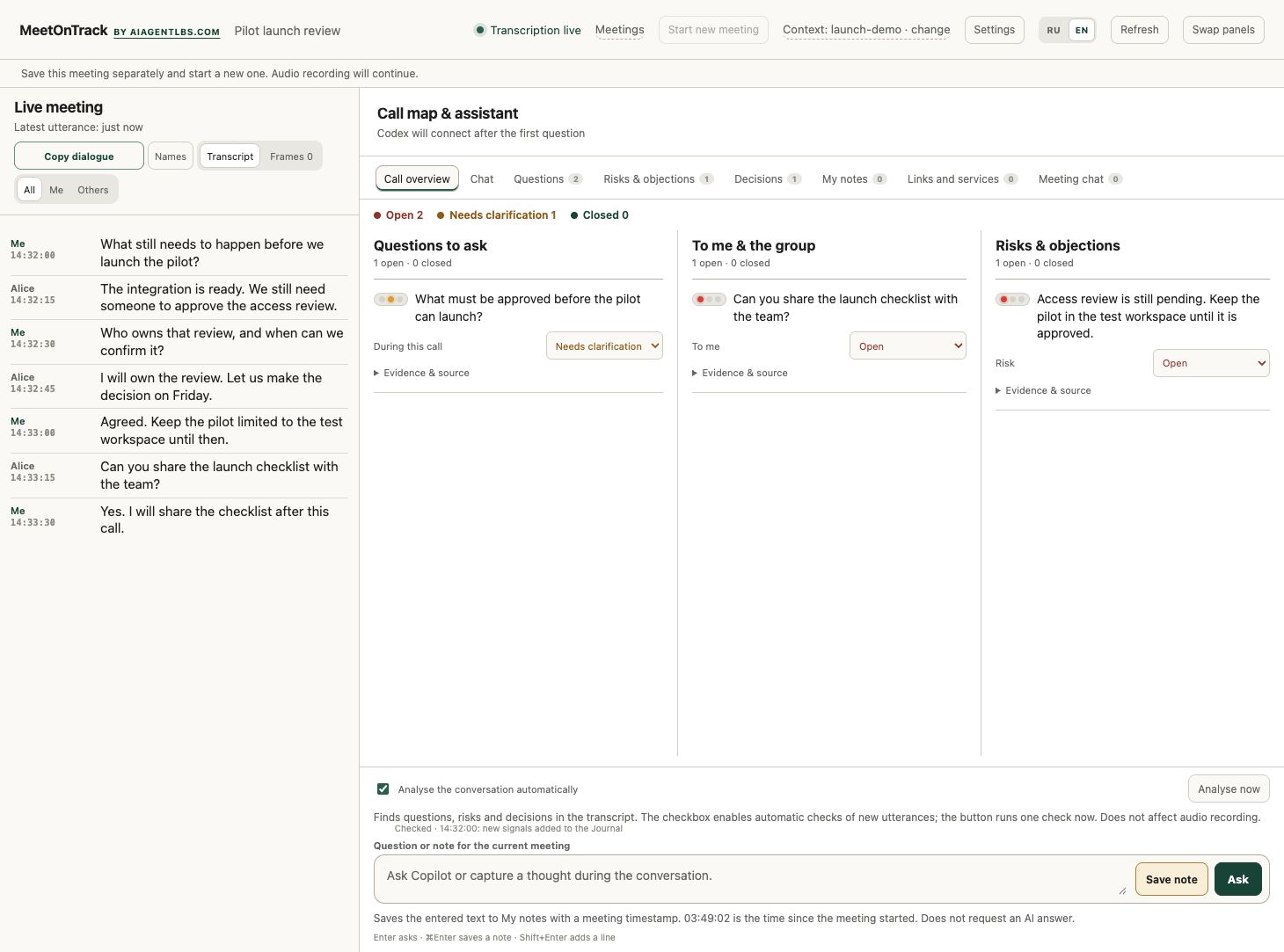
Past calls.
Only when you need them.
Open the meeting library without losing your current call. Close it to return to the conversation.
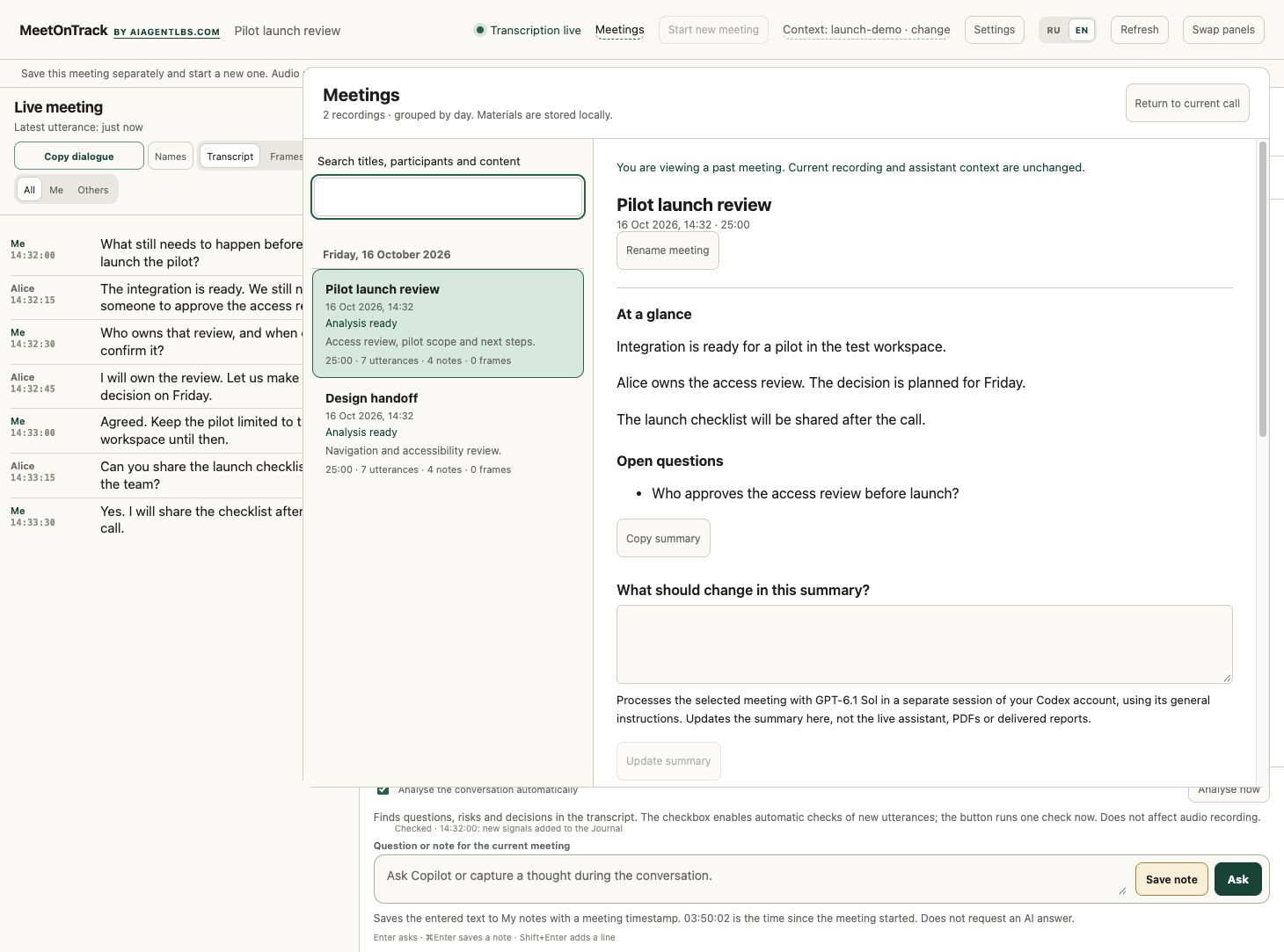
Connect the call to the work.
Record, inspect context, then save the useful results.
- 01
Capture
System audio and your microphone become a near-live transcript on your Mac. No bot joins the call.
- 02
Choose context
Select the local repositories relevant to the call. Speaker labels can need manual correction.
- 03
Verify
Codex searches up to 15 local GitHub or GitLab checkouts, docs, source and Git history.
- 04
Keep the result
Save notes and HTML/PDF reports. Delivery to Drive, email and Telegram is optional and needs configuration.
Your connections.
Your choice.
Recording and transcription run on your Mac. The interface is served at 127.0.0.1, and recordings and reports are saved in your user directory.
AI analysis in this beta uses your authenticated Codex CLI. Relevant conversation and repository excerpts may be sent to its configured AI service; the product does not promise that nothing leaves your Mac.
- Repository access is read-only
- No automatic clone, pull or fetch
- External report delivery is optional
Fully offline AI, a choice of local transcription models and additional API/subscription connectors are planned, not included in v0.1.9.
Install the Mac beta.
One command after the prerequisites below. This is a technical beta, not a standalone notarized installer.
- Apple Silicon and macOS 15+
- Python 3.10+ and Apple Command Line Tools
- Codex CLI installed and signed in
- Google Chrome for PDF reports
Missing Apple tools? Run xcode-select --install and finish the system dialog first. Install Python with your usual package manager; see the Codex CLI setup guide for AI access.
curl -fsSL https://meetontrack.com/install.sh | bashDownloads v0.1.9, checks its SHA-256, and preserves private settings and recordings. You can inspect the script before running it. Quit Meeting Copilot Capture before installing over an existing copy.
- Approve Microphone and Screen & System Audio Recording for Meeting Copilot Capture in macOS settings.
- Run
~/.local/bin/meeting-copilot. The interface opens athttp://127.0.0.1:43121. - Select the relevant repositories, make a short test call, then check the saved audio and transcript.
Updating and troubleshooting
Automatic in-app updates are not enabled in this beta. The command installs the version explicitly pinned in the script. After a newer tested release is published and the script is updated, finish your call, quit Capture and run the same command.
If a prerequisite, download, checksum or helper compilation fails, the installer stops before replacing your current app. Existing app and web files are backed up during a reinstall. Recordings and delivery settings are not deleted.
If macOS blocks launch, review the downloaded app in Privacy & Security. Do not disable Gatekeeper globally. For audio permission problems, check the exact installed app, quit it and reopen it.
Install the Windows beta.
Windows 11 24H2+, x64. Ready-to-run package, no compilation or SDK. Requires an installed, signed-in Codex CLI. First installation downloads local speech models (about 1.5 GB).
irm https://meetontrack.com/install.ps1 | iexUnsigned technical beta. Do not disable SmartScreen or antivirus. Update: finish the call, close Capture and repeat the command. Recordings and settings are preserved.
Download Windows ZIP · Read installer · Release notes and limitations
Challenge the claim.
Find the decision.
Show the source.
The source is newer than the downloadable beta. Features under development are not a promise about this package.
View source on GitHub